Laptop care · Surat field guide
Slow laptop: repair, clean, or upgrade?
A practical guide to checking a slow laptop, understanding when cleaning or an upgrade may help, and knowing when the device needs diagnosis or repair.
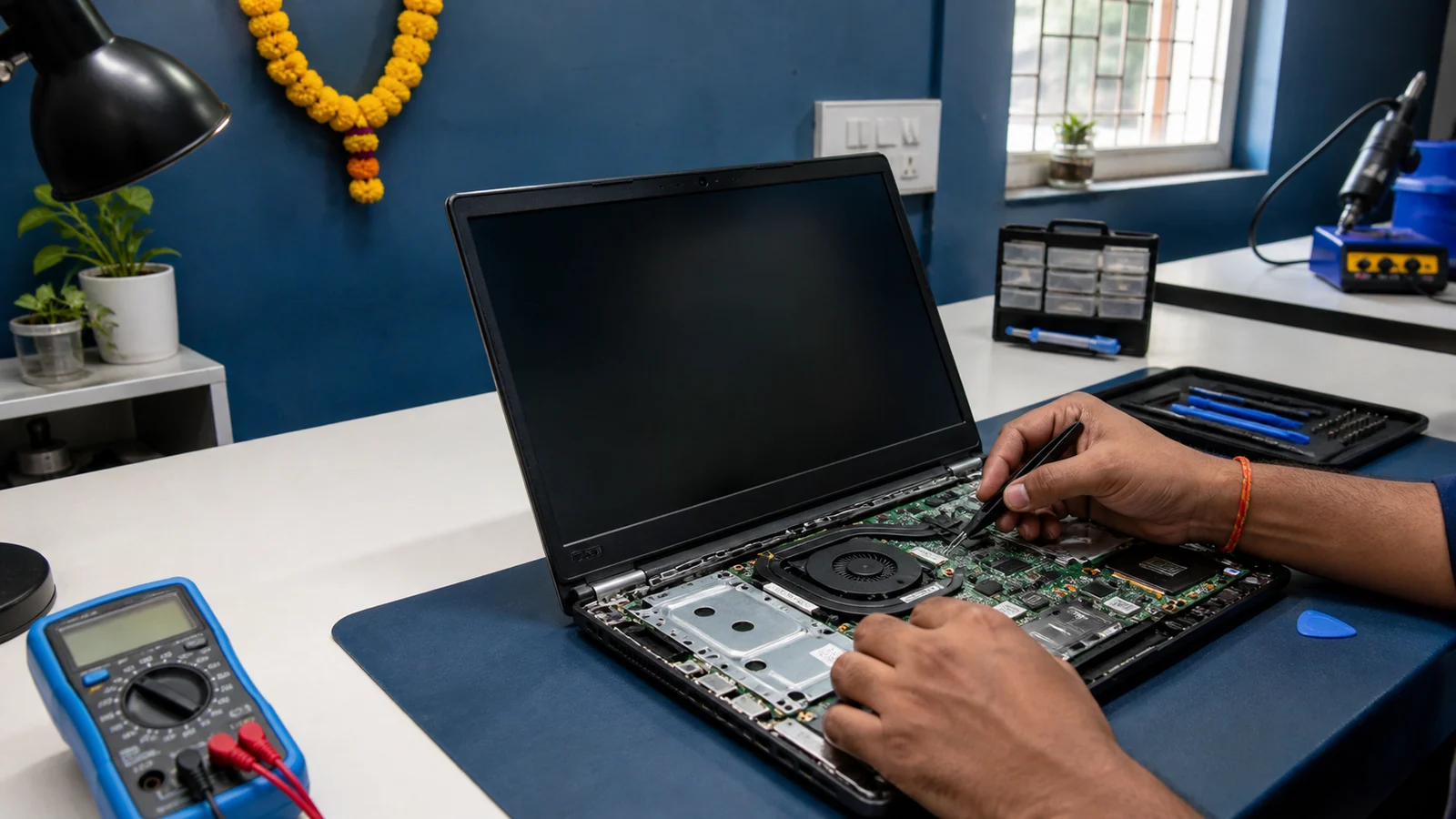
A slow laptop does not automatically need replacing. Check storage, startup apps, workload, heat and hardware limits. Cleaning helps airflow problems; RAM or an SSD may help a clear limit; repair suits freezes, shutdowns, errors or a failing part.
Start with the safe checks below. If the cause is still unclear, use problem diagnosis before spending on parts. A compatible upgrade should be chosen only after the exact laptop model and present configuration are checked.
Why does a laptop become slow?
Several small problems can feel like one big slowdown. Microsoft lists limited storage, startup apps, background activity, malware, outdated software and older hardware among common causes of poor Windows performance.
The pattern matters. A long startup can point towards startup apps or the system drive. Slowness with many browser tabs may mean memory pressure. Heat and fan noise can indicate heavy work or restricted airflow. Repeated freezing or restarts need diagnosis.
- Storage is nearly full or the older hard drive is busy.
- Too many apps open at startup or continue in the background.
- The workload needs more memory than the laptop has available.
- Updates, a scan or another process is temporarily using the processor or disk.
- Dust or blocked vents are contributing to heat and reduced performance.
- A storage, memory, cooling or power-related fault is developing.
SourcesMicrosoft Support: Tips to improve PC performance in WindowsMicrosoft Support: System configuration tools in Windows
Safe checks you can do first
Save your work, restart the laptop, and open only the apps you need. Then try these checks without opening the laptop.
- Check free space in Settings. Review large files, and do not remove folders you do not recognise.
- Open Task Manager on Windows with Ctrl + Shift + Esc. Look at CPU, Memory and Disk while the laptop feels slow; do not end unfamiliar system processes.
- Review Startup apps and disable only apps you know you do not need at sign-in.
- Install normal operating-system and app updates, then restart when convenient.
- Run the built-in Windows Security scan. Avoid unknown ‘speed booster’ or registry-cleaner downloads.
- Use the laptop on a firm, flat surface so its vents stay open.
SourcesMicrosoft Support: Tips to improve PC performance in WindowsMicrosoft Support: System configuration tools in WindowsDell Support: How to Troubleshoot Fan Issues
When physical cleaning may help
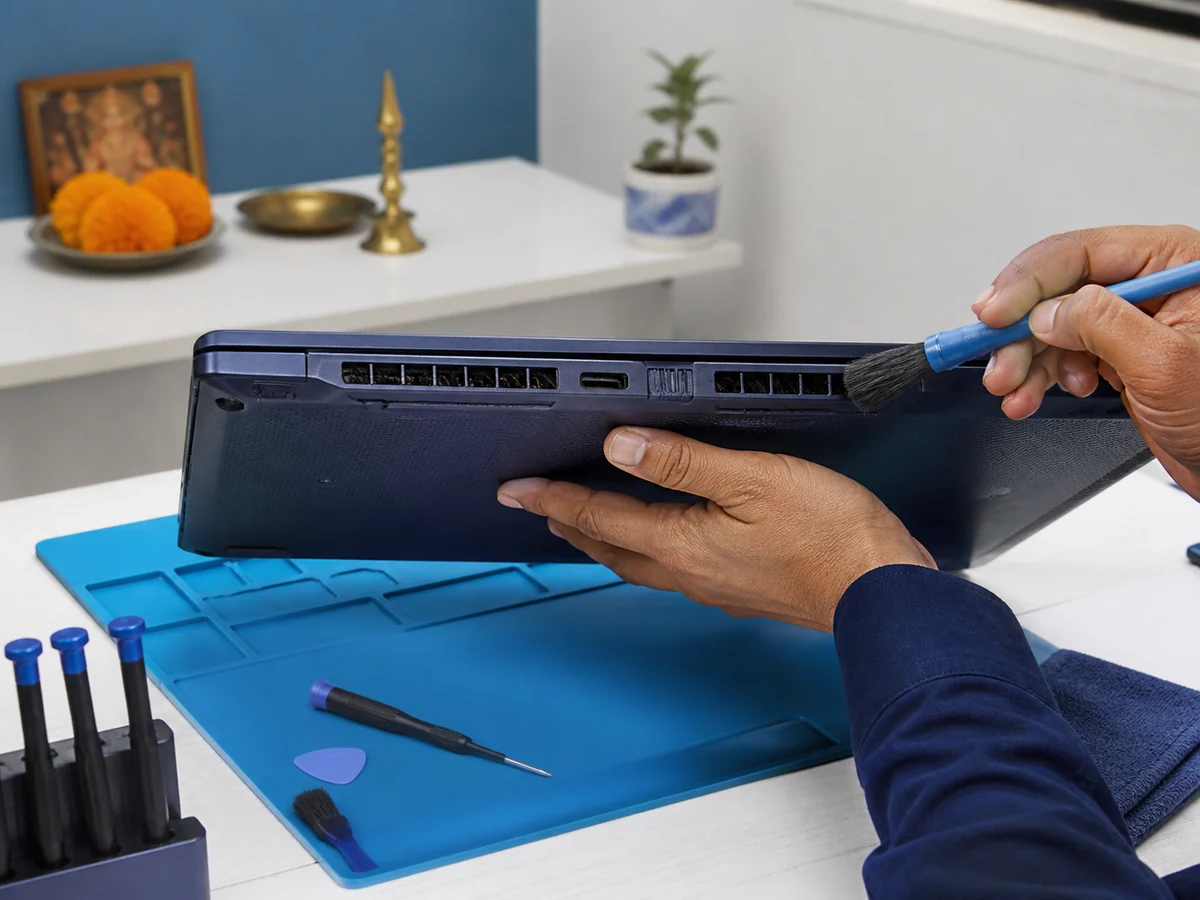
Cleaning is worth considering when the fan is unusually loud, the base becomes hot during light work, visible dust sits around vents, or performance drops after the laptop heats up. Dust can restrict airflow, but cleaning will not solve a full drive, unwanted software, low RAM or a failing component.
Keep home checks external: clear space around the vents and gently remove loose surface dust with the laptop switched off. Do not open the case, touch a battery, spray liquid, use a household vacuum or push objects through a vent. For internal cleaning, ask about computer cleaning and let the shop inspect the model safely.
When RAM or an SSD upgrade may help
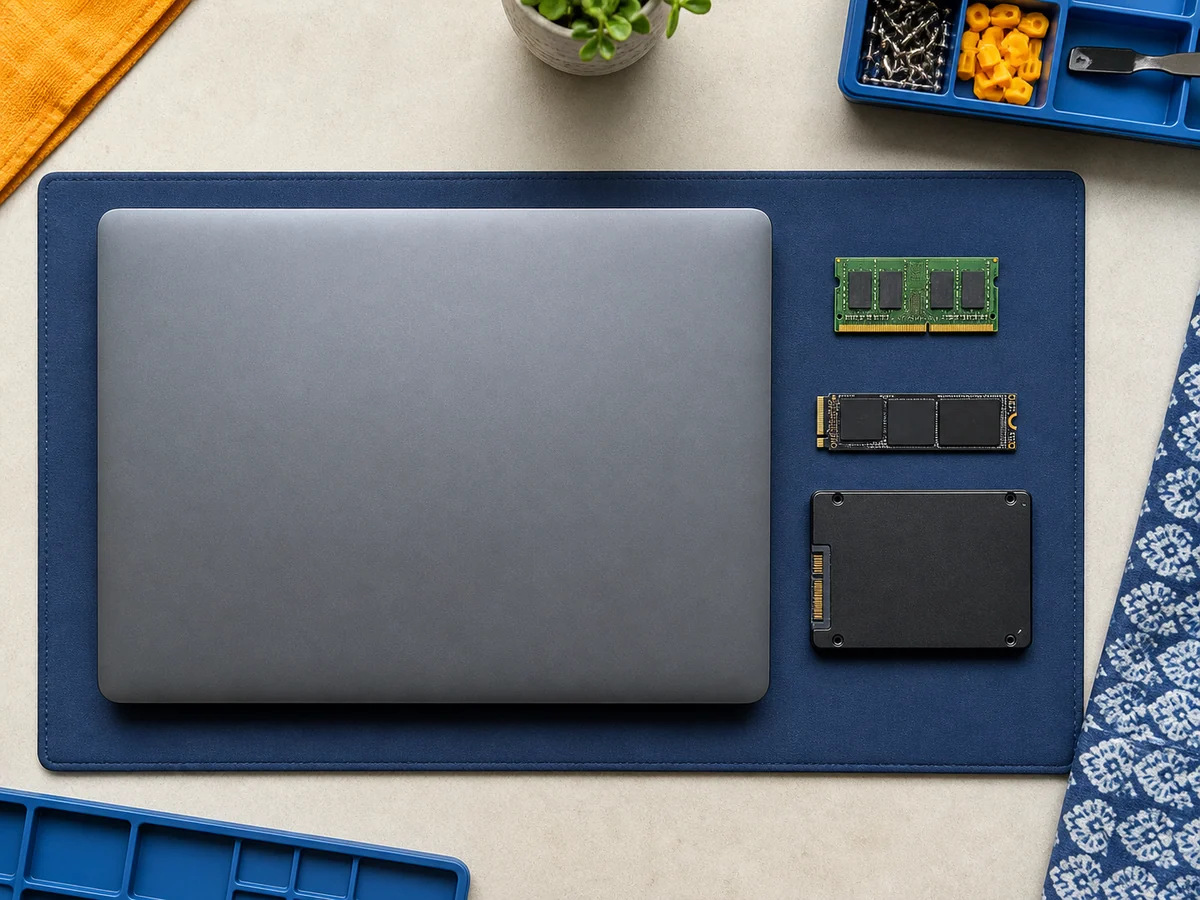
RAM helps the laptop keep active apps and browser tabs ready. A RAM upgrade may help when Memory stays very high during your normal work and the laptop supports a larger compatible module. It will not repair crashes caused by a damaged drive, overheating or another fault.
An SSD stores Windows, apps and files. If a healthy laptop still uses an older hard disk, a compatible SSD can improve startup and app-loading responsiveness. If the laptop already has an SSD, the cause may be free space, workload, software or hardware health instead.
Not every laptop can be upgraded. Some memory is fixed to the board, storage connectors differ, and the correct part depends on the full model number. Use computer upgrades to check compatibility before buying anything. Back up important files before any storage work.
SourcesMicrosoft Support: Tips to improve PC performance in WindowsMicrosoft Support: System configuration tools in Windows
When diagnosis or repair is the better next step
Choose diagnosis instead of guessing when the laptop freezes repeatedly, restarts by itself, cannot find its storage, shows a blue or black error screen, makes a new clicking or grinding sound, has liquid or impact damage, or becomes too hot to touch comfortably.
Stop using and unplug the laptop if you notice a burning smell, smoke, a visibly swollen case or battery area, or an unsafe power connection. Do not press the case closed. Ask the shop how to transport it. For other unstable behaviour, note what happened just before the problem and contact laptop repair.
Decision table
Clean vs upgrade vs repair
| Option | Best fit | What it may improve | What to confirm |
|---|---|---|---|
| Clean | Dust, blocked vents, excess heat or loud fan | Airflow and heat-related slowdown | Whether the cause is actually thermal |
| Upgrade | Laptop is stable but RAM or storage is a measured limit | Multitasking, startup or app loading | Exact model, compatibility and current parts |
| Repair | Crashes, errors, power trouble, missing drive or physical damage | The underlying fault after diagnosis | Symptoms, test result and approved repair scope |
Back up important files before service
Copy important documents, photos, study files, accounts work and business records before service when the laptop is stable enough. Use an external drive or trusted cloud account, open a few copied files to check them, and keep the backup separate.
Windows Backup can sync selected folders to OneDrive. Mac users can use Time Machine with external storage. Confirm that important files are available from another device or drive. If the laptop is unstable or the drive may be failing, stop repeated copying attempts and ask about data backup or recovery.
SourcesMicrosoft Support: Back up and restore with Windows BackupApple Support: Back up your Mac with Time Machine
What to send on WhatsApp
A useful first message helps the shop understand the laptop without promising a diagnosis from chat. Send the details below, plus a clear photo of any error message. Do not share passwords, PINs, recovery keys or private files.
- Brand and full model number from the label or system information.
- Windows or macOS version, if known.
- When the slowdown started and whether it is constant or only in certain apps.
- Any heat, fan noise, restart, error message, spill or drop.
- Whether important files are already backed up.
Common questions
Quick FAQs
Will cleaning always make a slow laptop faster?
No. Cleaning may help with dust and heat. It will not fix low storage, excessive startup apps, insufficient RAM or a failing part.
Should I upgrade RAM or install an SSD first?
It depends on the measured limit and compatibility. High memory use suggests checking RAM; an older hard drive may make an SSD worth discussing.
Can I keep using a laptop that becomes very hot?
Move it to a hard, flat surface and stop heavy work. If it shuts down, smells unusual, is too hot to touch or looks swollen, stop using it and ask for advice.
Can the shop diagnose the laptop from a WhatsApp message?
A message can narrow the next step, but a recommendation may require inspection and testing. Send the exact model, symptoms and an error photo.
Prepared with AI assistance and reviewed by Kaileshwari Tech Hub.
Local diagnosis
Still not sure which fix fits?
Send the laptop model and what feels slow. Kaileshwari Tech Hub can help you arrange diagnosis before you decide on cleaning, an upgrade or repair.
Message for laptop diagnosis