Printer help · Surat field guide
Printer not printing? Safe checks before repair
A practical guide to printer connection, queue, paper-feed and print-quality problems—and when a Surat home, shop or office should arrange diagnosis.
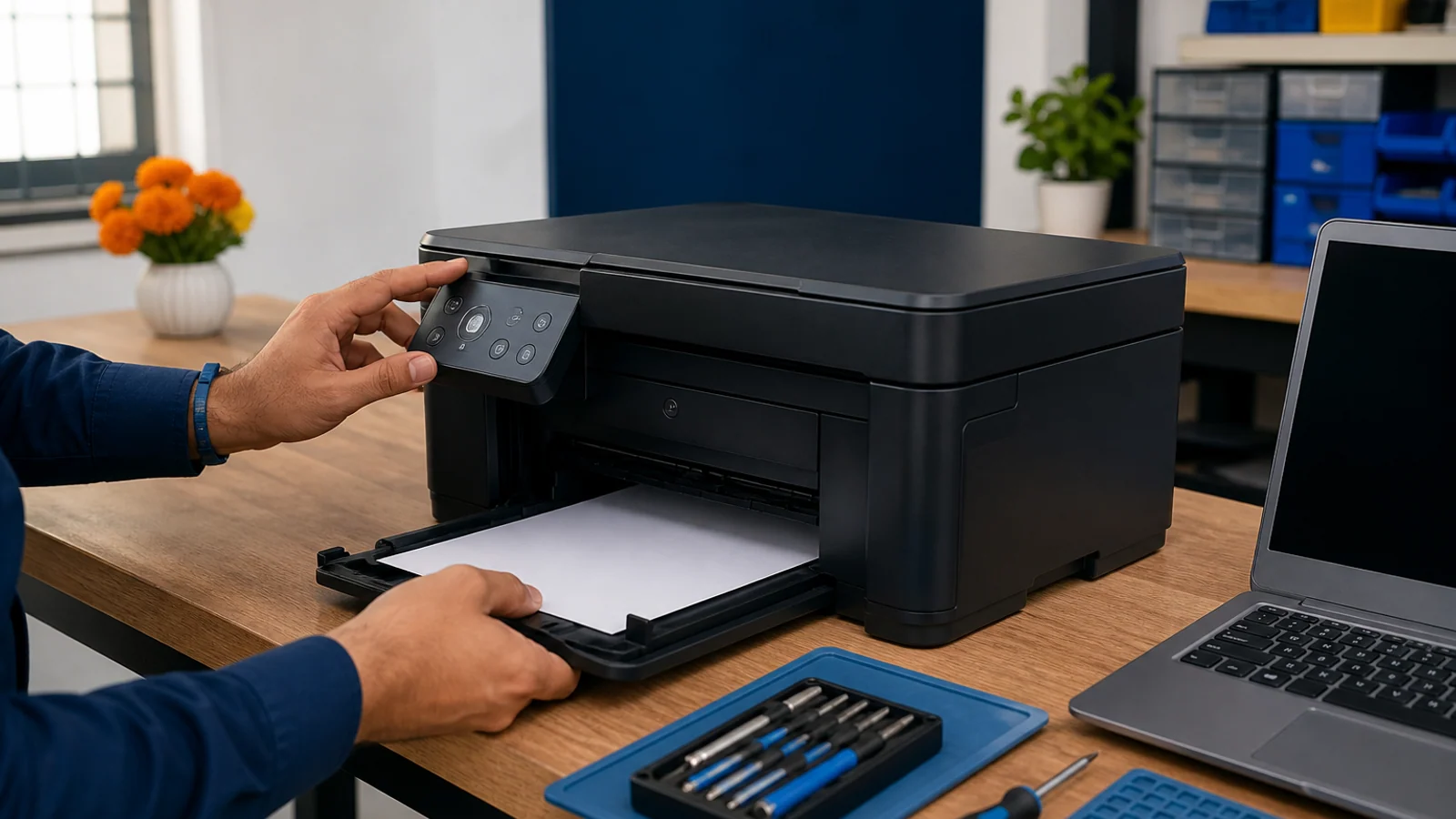
When a printer will not print, start by identifying the symptom: offline, stuck queue, no paper movement, repeated jam, blank page, faded output or an error light. Check the selected printer, connection, paper and ink or toner before arranging repair. Stop if paper will not move gently, a part looks broken, or there is heat, smoke or a burning smell.
These checks suit students, households, shops and small offices around Surat, Vareli and Kadodara. They avoid deep disassembly and help you send useful details if you need printer or network support.
First, read what the printer is telling you
A printer problem can come from the printer, computer, app, cable, Wi-Fi network, paper path or consumables. The quickest check is to see whether every device has the problem. If one laptop cannot print but another device can, the printer itself may be working and the issue may be the queue, selected printer, app or driver.
Note the exact status shown on the computer and any light pattern or message on the printer. Do not guess from one word such as ‘offline’: a printer may be switched off, paused, connected to another network, or simply not selected.
- Offline or not found: start with connection and printer selection.
- Job stays in queue: cancel the stuck job, then try a small test page.
- Paper does not feed: check loading, guides and only easily visible obstructions.
- Faded, streaked or missing colours: check supplies and the model’s maintenance utility.
- Grinding, repeated jams or physical damage: stop repeated attempts and arrange diagnosis.
SourcesMicrosoft Support: Fix printer connection and printing problems in WindowsApple Support: Solve printing problems on Mac
Safe checks before you request repair
Save your document and try one simple test page. Check that the printer is on, its cover is closed, paper is loaded correctly, and the computer has selected the intended printer. Use the manufacturer’s instructions for your exact model when a button or menu is unfamiliar.
- Cancel duplicate or failed jobs in the print queue, then try one new job.
- For USB, check that the cable is secure at both ends without forcing the connector.
- For Wi-Fi, confirm the printer and computer are on the same network name.
- Restart the printer and computer normally; do not repeatedly switch power during a maintenance cycle.
- Try printing from another simple app to see whether the problem belongs to one document or app.
- Use only the driver or utility from Windows Update, macOS or the printer manufacturer’s official site.

SourcesMicrosoft Support: Fix printer connection and printing problems in WindowsMicrosoft Support: Troubleshooting offline printer problems in WindowsApple Support: Solve printing problems on Mac
What to do about a paper jam or feed problem
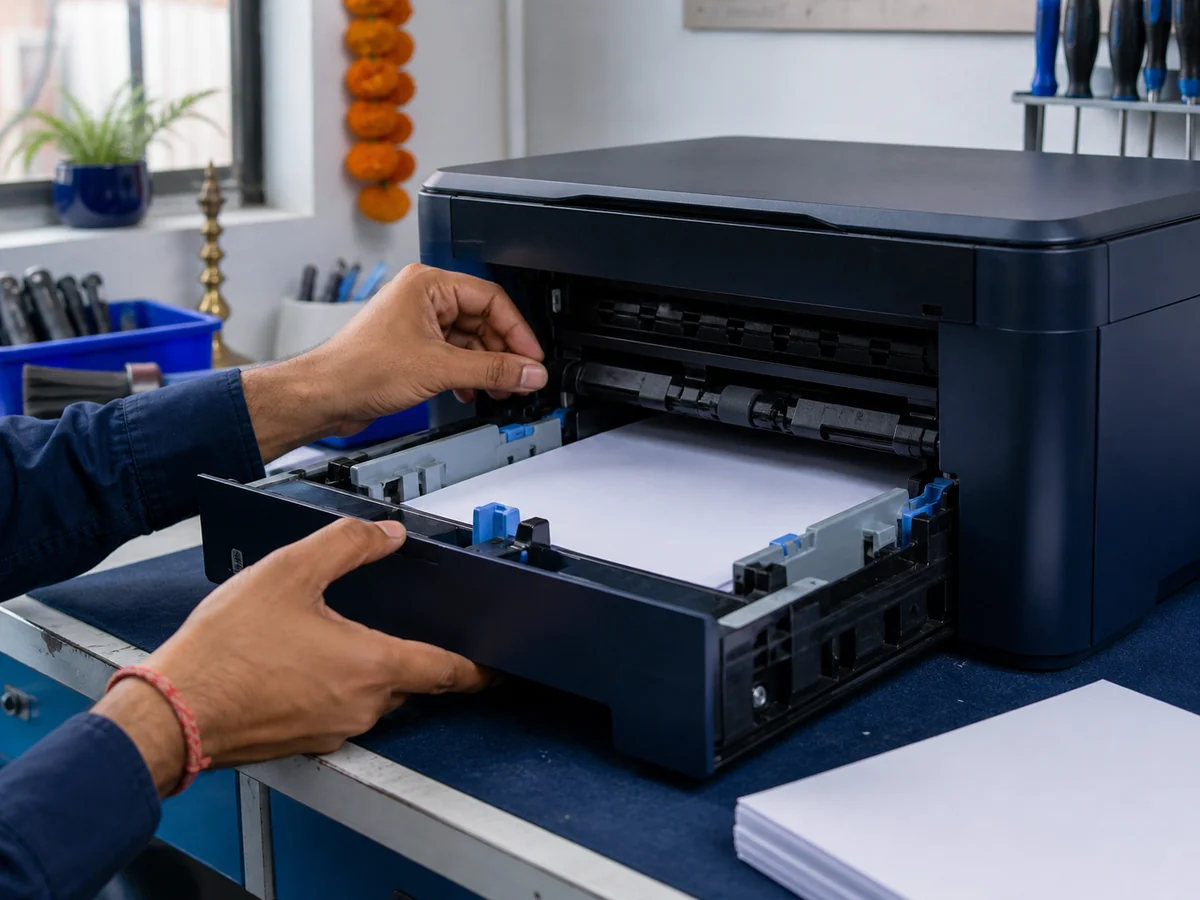
Remove loose paper from the input tray and follow the on-device or manufacturer instructions for the reported jam location. Paper guides should touch the stack without bending it, and mixed sizes or damaged sheets can feed unevenly.
Do not pull hard, reach deep into the printer, touch hot internal areas, or use a sharp object. If a sheet tears, a small piece may remain and cause another jam. When paper is not easily accessible, the same jam returns, or rollers make a new grinding sound, stop and ask about printer repair.
Faded, streaked or blank pages
First check the ink or toner status, correct paper type and print settings. A low-quality source image or an incorrect paper setting can also affect the result. Print a built-in test or nozzle-check page if the model provides one.
For an inkjet, use only the printer’s documented cleaning utility and only when quality has declined. Cleaning consumes ink, so repeating cycles without checking the result can waste supplies. Do not manually wipe a printhead unless the manufacturer’s instructions for that exact model say to do so.
Blank pages with available ink, repeated bands after the documented maintenance cycle, toner marks, leaks or an error that returns can need diagnosis. Send a clear photo or scan of the bad print with the model number.
SourcesEpson Support: Printhead maintenanceMicrosoft Support: Fix printer connection and printing problems in Windows
When printer diagnosis is the better next step
Arrange diagnosis when safe checks do not change the symptom, the printer repeatedly disappears from several devices, jobs fail on both USB and Wi-Fi, or the same error returns after a normal restart.
Stop using the printer if you notice smoke, a burning smell, unusual heat, liquid or ink leaking into electrical areas, a damaged power cable, or loud grinding. Do not open power-supply areas or continue forcing paper through. Use the contact page to ask how to bring the printer safely.
Decision table
Connection, consumable or repair?
| Symptom | Safe first check | Likely area | Next step |
|---|---|---|---|
| Offline or not found | Selected printer, cable, same Wi-Fi and queue | Connection or software | Test from another device, then request setup help |
| Faded or streaked | Supply status, paper setting and documented test page | Ink, toner or maintenance | Use the model’s utility once, then compare |
| Repeated jam or noise | Correct paper and only visible accessible obstructions | Feed path or hardware | Stop forcing paper and arrange diagnosis |
What to send on WhatsApp
A useful first message helps the shop distinguish setup from repair. Do not send Wi-Fi passwords, account passwords or private documents. Include the following details instead.
- Printer brand and full model number.
- USB, Wi-Fi or shared office connection.
- Exact error message or light pattern, with a clear photo.
- Whether the printer can copy or print its own test page.
- Whether every device has the problem or only one computer or app.
- A photo of a poor-quality page or accessible jam area, without personal information.
Printer help for Surat homes and small workplaces
A home printer used for study documents has different pressure from a shop or office printer used for bills, labels and daily records. Tell the shop what you normally print and how many devices use the printer. That context helps separate a device fault from a network or setup problem.
Kaileshwari Tech Hub lists printer repair and network-printer setup for Surat and nearby areas. Availability, parts and repair scope should be confirmed only after the exact model and symptom are reviewed.
Common questions
Quick FAQs
Why does my printer say offline even when it is on?
The computer may have selected another printer, paused the queue, lost the cable connection or joined a different Wi-Fi network. Check those items before reinstalling anything.
Should I keep running printhead cleaning?
No. Use the documented utility only when quality declines, check the result after a cycle, and follow the manufacturer’s limit because cleaning consumes ink.
Can I pull out jammed paper myself?
Follow the model’s instructions only when the paper is accessible and moves gently. Stop if it tears, resists, sits near a hot area or requires disassembly.
What should I bring with the printer?
Ask the shop first. Usually the exact model, power cable if requested, a sample bad print and photos of the error help explain the problem.
Prepared with AI assistance and reviewed by Kaileshwari Tech Hub.
Local diagnosis
Printer still not working?
Send the model, connection type and exact symptom. Kaileshwari Tech Hub can help determine whether the next step is setup support, maintenance or printer diagnosis.
Message for printer diagnosis