Computer repair · Surat field guide
Computer not turning on? Safe checks before diagnosis
A practical guide to a desktop or laptop with no power, no lights or no display—and when a Surat home, shop or office should arrange diagnosis.
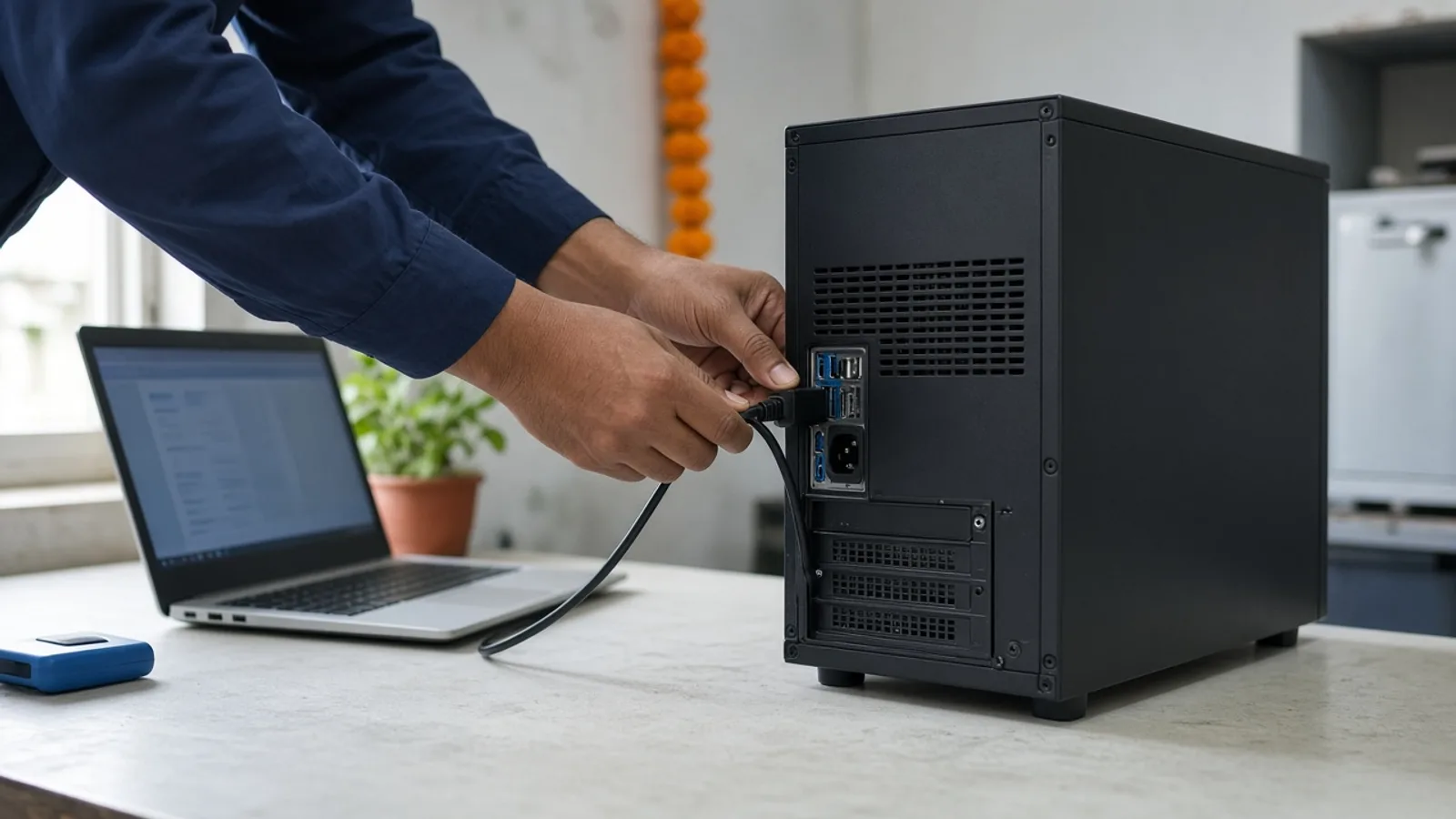
A computer that will not turn on can fail at different points: no power at all, power with no display, or a display that stops before Windows loads. Check power, cables and a basic hard reset before assuming a hardware fault. Stop if you notice a burning smell, smoke or a visibly swollen case.
These checks suit desktops and laptops used by students, households, shops and small offices around Surat, Vareli and Kadodara. If the pattern is still unclear afterwards, use problem diagnosis rather than repeating the same attempt.
First, work out how far the computer gets
A computer that will not turn on can fail at different points: no power at all, power with no display, or a display that stops before Windows loads. Each pattern points to a different area, so check what actually happens first.
Watch for a power light, fan sound, keyboard light or any beep when you press the power button. A desktop with no lights and no fan sound usually points to power; a device that lights up but shows nothing on screen is a separate, display-related pattern.
- No lights, no fan, no sound: check the power cable, socket, adapter and switch.
- Lights or fan turn on but the screen stays blank: check the monitor and cable, then listen for beeps.
- Turns on, shows a logo, then restarts or stops: this needs diagnosis rather than repeated attempts.
- Laptop only powers on with the charger plugged in: the battery may need checking.
- Any burning smell, smoke or a swollen case: stop immediately and unplug it.
SourcesDell Support: Computer Won't Turn On: Troubleshoot Power IssuesHP Support: HP PCs - Computer does not turn on, start, or boot
Safe checks before you request repair
Start with the simplest possible cause. Confirm the wall socket works with another device, and try a different socket if one is available.
- Desktop: check the power cable, the switch on the power supply, and any extension board it is plugged into.
- Laptop: connect the charger directly and confirm its indicator light is on.
- Disconnect extra USB drives, printers and other accessories, then try powering on with only the essentials connected.
- Try a basic hard reset: unplug the computer, hold the power button for around 30 seconds, then reconnect and try again.
- If the screen stays blank but the computer sounds like it is running, check the monitor cable and try a different port.
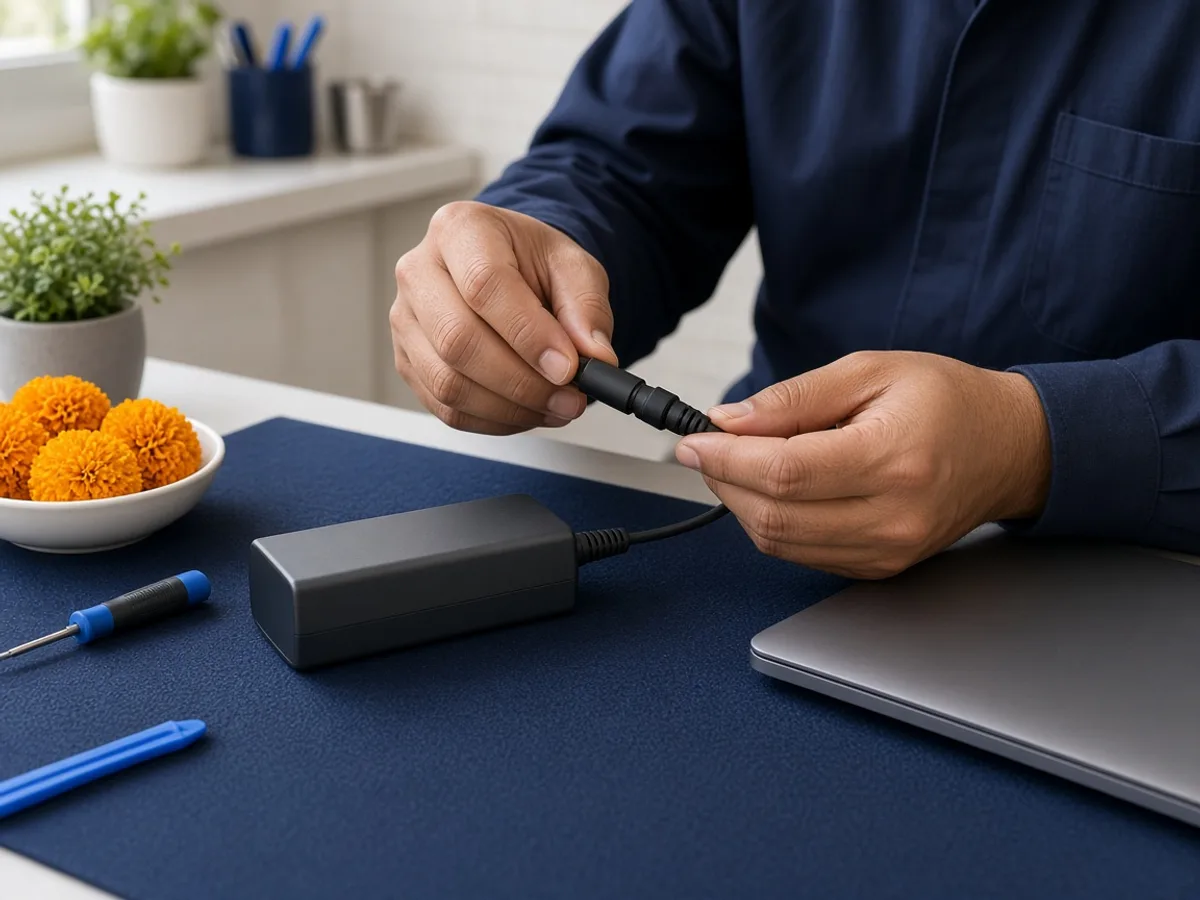
SourcesDell Support: Computer Won't Turn On: Troubleshoot Power IssuesHP: How to Fix an HP Laptop That Won't Turn On
When a laptop only works on charger power
If a laptop starts only while plugged in and shuts down on battery, the battery itself is often the cause, though a loose internal connection is also possible. Check the charging light near the power port and confirm the adapter is genuine.
Stop using the laptop if the base near the battery feels swollen or the case no longer sits flat. Do not press on a swollen area or continue charging it. Ask about laptop repair so the battery can be checked safely.

Turns on but will not reach Windows
A computer that shows a manufacturer logo, a repeating restart, or an error before Windows loads is past the power stage and into a startup problem. Windows includes a built-in Startup Repair tool that can fix some missing files or boot configuration errors once the recovery environment loads.
Avoid repeatedly forcing a restart once an error appears, and avoid running unfamiliar repair software. Note the exact wording of any error and whether it happened after an update, a fall or a spill.
SourcesMicrosoft Support: Startup RepairHP Support: HP PCs - Computer does not turn on, start, or boot
When diagnosis is the better next step
Choose diagnosis instead of repeating the same attempt when the computer shows no response after a hard reset and a checked socket, or the same startup error keeps returning.
Stop using the computer and disconnect it if you notice a burning smell, smoke, a swollen battery or case, or liquid has entered it. Do not force the case shut or keep restarting it. Ask the shop how to bring it in through the contact page.
Decision table
Power, display or startup issue?
| Symptom | Safe first check | Likely area | Next step |
|---|---|---|---|
| No lights or sound at all | Cable, socket, adapter and a hard reset | Power supply or adapter | Confirm power basics, then request diagnosis |
| Powers on, screen stays blank | Monitor cable, port and brightness | Display connection or graphics | Try another monitor or port, then ask for diagnosis |
| Logo appears, then restarts or stops | Startup Repair from the recovery screen | Windows startup or storage | Avoid repeated forced restarts; arrange diagnosis |
Protect your files before service
If the computer still turns on briefly, copy anything important to an external drive or a trusted cloud account while it is stable enough. Do not keep forcing a failing machine to grab one more file.
If it will not turn on at all, do not assume the files are lost. A working drive can often still be read during diagnosis. Ask about data backup or recovery rather than trying repeated repairs yourself.
What to send on WhatsApp
A useful first message helps the shop understand the fault without promising a diagnosis from chat. Do not send account or Windows passwords.
- Desktop or laptop, brand and model, from the label or invoice if available.
- Exactly what happens when you press the power button: lights, sound, display.
- Whether it worked normally right before the problem started.
- Any recent event: power cut, fall, spill or a Windows update.
- Whether important files are already backed up elsewhere.
Common questions
Quick FAQs
My desktop has no lights at all. What should I check first?
Check the wall socket with another device, the power cable at both ends, and the switch on the back of the power supply before assuming a hardware fault.
My laptop only turns on when plugged into the charger. Is that a battery problem?
It often is, though a loose internal connection is also possible. Stop using it if the case feels swollen and ask for a battery check.
The computer shows the logo, then restarts on its own. What does that mean?
This points to a startup problem past the power stage. Avoid repeated forced restarts, try Startup Repair from the recovery screen, or arrange diagnosis if it keeps happening.
Can I still recover my files if the computer will not turn on?
Often yes. A working drive can usually still be read during diagnosis. Ask about data backup or recovery instead of repeating power attempts.
Prepared with AI assistance and reviewed by Kaileshwari Tech Hub.
Local diagnosis
Computer still not turning on?
Send the device type, brand and exactly what happens when you press the power button. Kaileshwari Tech Hub can help determine whether the next step is a basic check, a battery review or full diagnosis.
Message for computer diagnosis