CCTV & security · Surat field guide
CCTV camera not recording? Safe checks before repair
A practical guide to CCTV camera, DVR and NVR problems—no picture, no recording, storage errors or a system offline in the app—and when a Surat home, shop or office should arrange diagnosis.
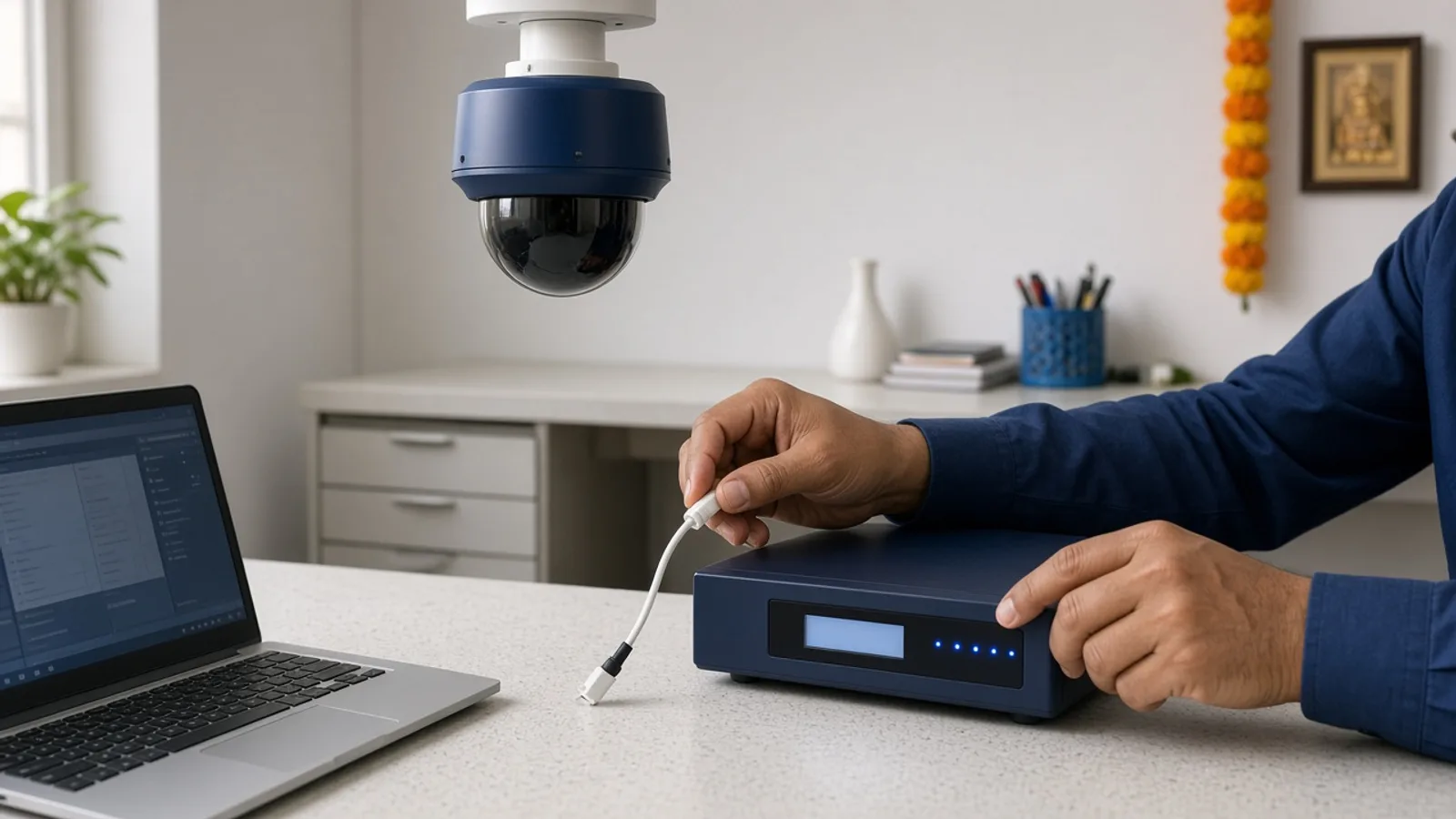
When a CCTV camera stops recording, start by identifying where the fault sits: the camera itself, the DVR or NVR, the storage drive, the power supply, or the home or shop network. Check power, cable connections, storage status and network settings before assuming a camera has failed. Stop if you notice a burning smell, an overheating adapter or exposed wiring.
These checks suit homes, shops and small offices around Surat, Vareli and Kadodara that already have CCTV installed. They avoid opening the DVR case or handling live wiring, and help you send useful details if you need CCTV installation support.
First, identify where the fault sits
A CCTV problem can come from the camera, the DVR or NVR, the storage drive, the power adapter, the cabling or the local network. Check whether every channel has the problem or only one. If every camera has lost its picture, the fault is more likely the recorder, its power or the network; if one camera alone is affected, check that camera's own cable and adapter first.
Note the exact message on the monitor or app: no signal, disconnected, storage full, or an error icon. Do not assume a camera has failed from one blank screen alone; a loose connector or a full drive can look identical to a hardware fault.
- No picture on one channel: check that camera's cable, connector and power adapter.
- No picture on every channel: check DVR or NVR power, the main cable and the monitor input.
- Live view works but nothing plays back: check storage status and the recording schedule.
- App shows the system as offline: check the router, network cable and internet connection.
- Frequent disconnects, a burning smell or a hot adapter: stop and arrange diagnosis.
SourcesCP Plus: TroubleshootingHikvision Portal: How to trouble shoot my IP camera?
Safe checks before you request repair
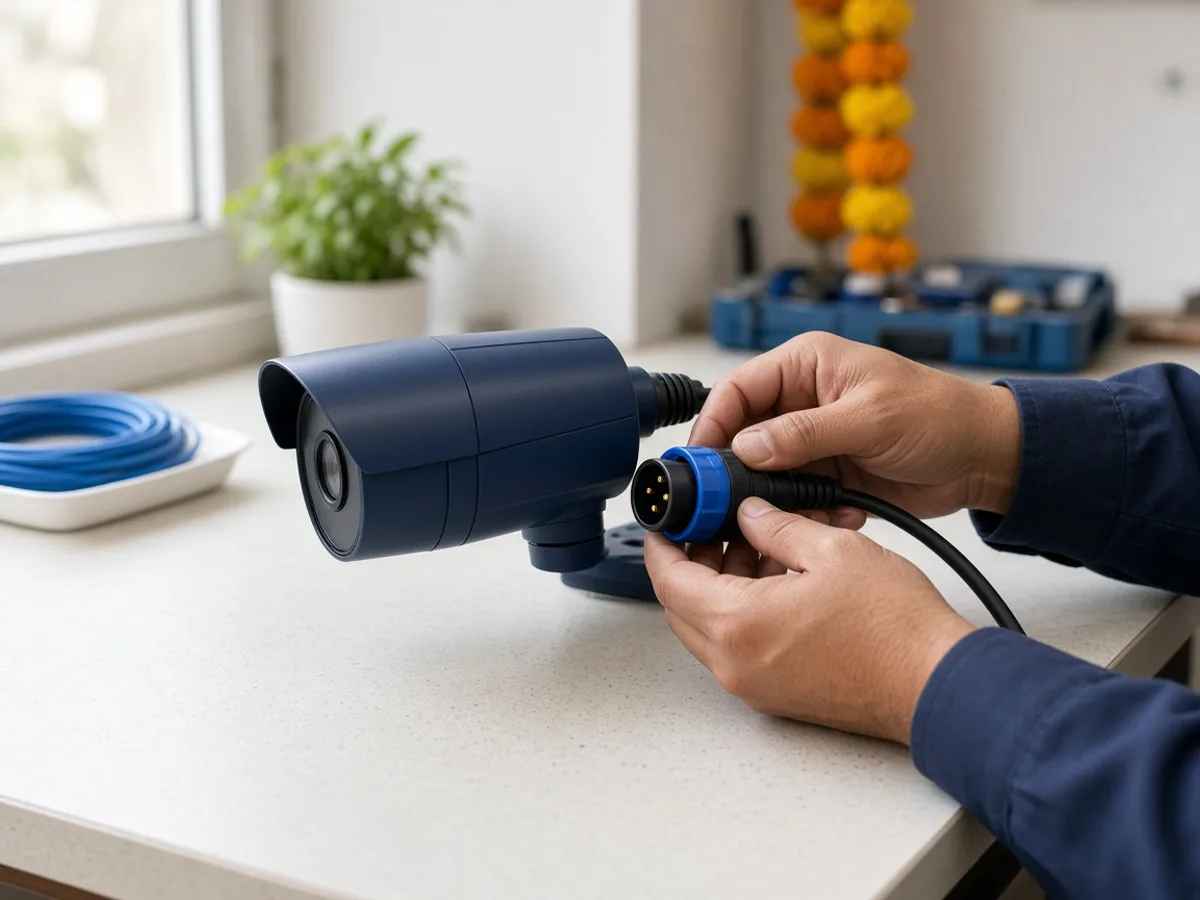
Confirm the DVR or NVR display is on and the correct input is selected on the monitor. Check that every visible cable is seated firmly without forcing a connector.
- Check the recorder's power indicator and any camera status light described in its manual.
- Confirm the network cable between the recorder and router is connected, then try restarting the router.
- Look at the camera list or channel status menu for a clear error such as 'no video' or 'IP conflict'.
- Avoid unplugging and replugging cameras repeatedly; note which channel is affected instead.
- Use only the mobile app or software listed by the recorder's manufacturer to check remote status.
SourcesCP Plus: TroubleshootingHikvision Portal: How to trouble shoot my IP camera?TP-Link Support: Router Not Connecting to Internet | How to Troubleshoot and Fix
What to do about storage or recording errors
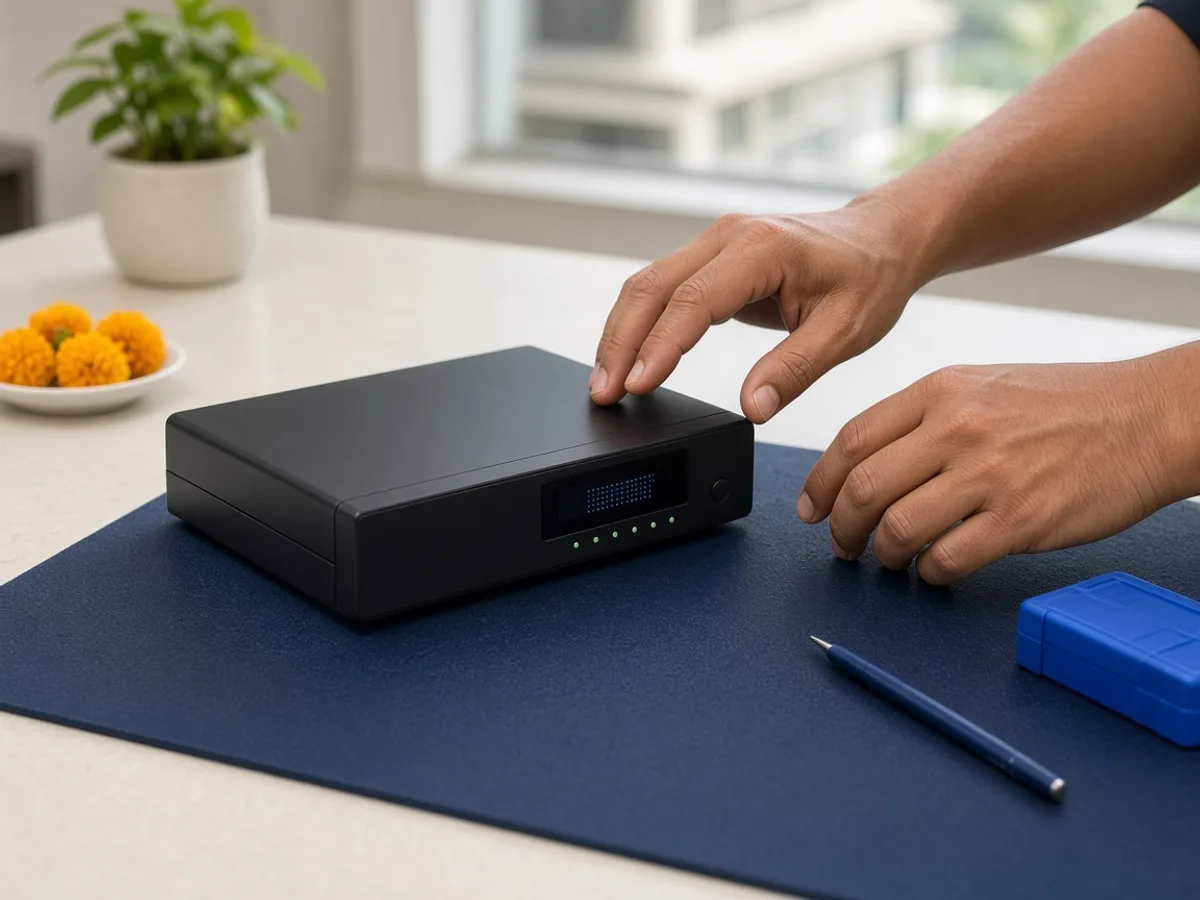
If live view works but nothing plays back, check the storage or HDD menu on the recorder for a status such as 'unformatted', 'error' or 'full'. A full drive can stop new recording, and a loose drive cable can show as a storage error even when the drive itself is fine.
Do not open the DVR or NVR case or handle the hard drive yourself. If storage shows an error, stays unformatted after a normal restart, or the same channel loses recording repeatedly, ask about problem diagnosis rather than repeating the check.
SourcesCP Plus: Troubleshooting
When remote viewing on the app stops working
Local recording and remote viewing rely on different things. The recorder can keep recording normally even when the mobile app shows the system offline. Restart the router and modem in the correct order, then check that the recorder's network settings still show a valid address.
If the app was working before and nothing was changed, a router replacement, an outage or a changed Wi-Fi password can be the cause. Confirm other devices at the same location have internet access before assuming the CCTV system itself has failed.
SourcesTP-Link Support: Router Not Connecting to Internet | How to Troubleshoot and Fix
When CCTV diagnosis is the better next step
Arrange diagnosis when safe checks do not change the symptom, several cameras disconnect together, the same storage error returns after a restart, or picture quality has clearly declined.
Stop and disconnect power if you notice a burning smell, a hot adapter, a melted plug, exposed wiring, or water near any camera or the recorder. Avoid running several devices from one overloaded extension board. Use the contact page to ask how to arrange a visit.
SourcesNational Fire Protection Association: Fundamental Electrical Safety Requirements in the Fire Code
Decision table
Camera, storage or network issue?
| Symptom | Safe first check | Likely area | Next step |
|---|---|---|---|
| No picture on every channel | Recorder power, main cable and monitor input | Recorder or power supply | Confirm power and cabling, then request diagnosis |
| Live view fine, no playback | HDD status, free space and recording schedule | Storage or recording settings | Check the storage menu, then ask about diagnosis |
| App shows system offline | Router, modem and network cable | Home or shop network | Restart the network, then confirm with another device |
What to send on WhatsApp
A useful first message helps the shop separate a camera fault from a network or storage issue. Do not send Wi-Fi or DVR login passwords, or private footage.
- DVR, NVR or camera brand and model, if visible on the device or box.
- Number of cameras installed and which channel is affected.
- Whether the problem is picture, recording, storage or remote app access.
- Any error message or status shown on the recorder's screen or app.
- Whether the issue started after a power cut, storm or network change.
CCTV support for Surat homes, shops and offices
A home CCTV setup for a gate and porch has different needs from a shop system covering a counter and stock area. Tell the shop how many cameras are installed and which area is affected so the visit can be planned properly.
Kaileshwari Tech Hub lists CCTV installation for Surat and nearby areas. Availability and repair scope for an existing system should be confirmed after the exact setup and symptom are reviewed.
Common questions
Quick FAQs
Why does only one CCTV camera show no picture while the others work?
Check that camera's own cable, connector and power adapter first. A single-channel fault is more often a loose connection than a recorder problem.
Does a full hard drive stop the DVR from recording?
It can, depending on the configured storage settings. Check the storage or HDD menu for its status before assuming a camera or recorder fault.
The recorder still works but the mobile app shows the system offline. What should I check first?
Restart the router and modem, then confirm other devices at the same location have internet access before assuming the CCTV system has failed.
Is it safe to open the DVR or NVR myself?
No. Avoid opening the case or handling the hard drive or internal cables. Ask for diagnosis if a storage or connection error does not clear after a normal restart.
Prepared with AI assistance and reviewed by Kaileshwari Tech Hub.
Local diagnosis
CCTV camera not working properly?
Send the number of cameras, the affected channel and the exact symptom. Kaileshwari Tech Hub can help determine whether the next step is a cable check, a storage review or CCTV diagnosis.
Message for CCTV diagnosis